Purpose and location
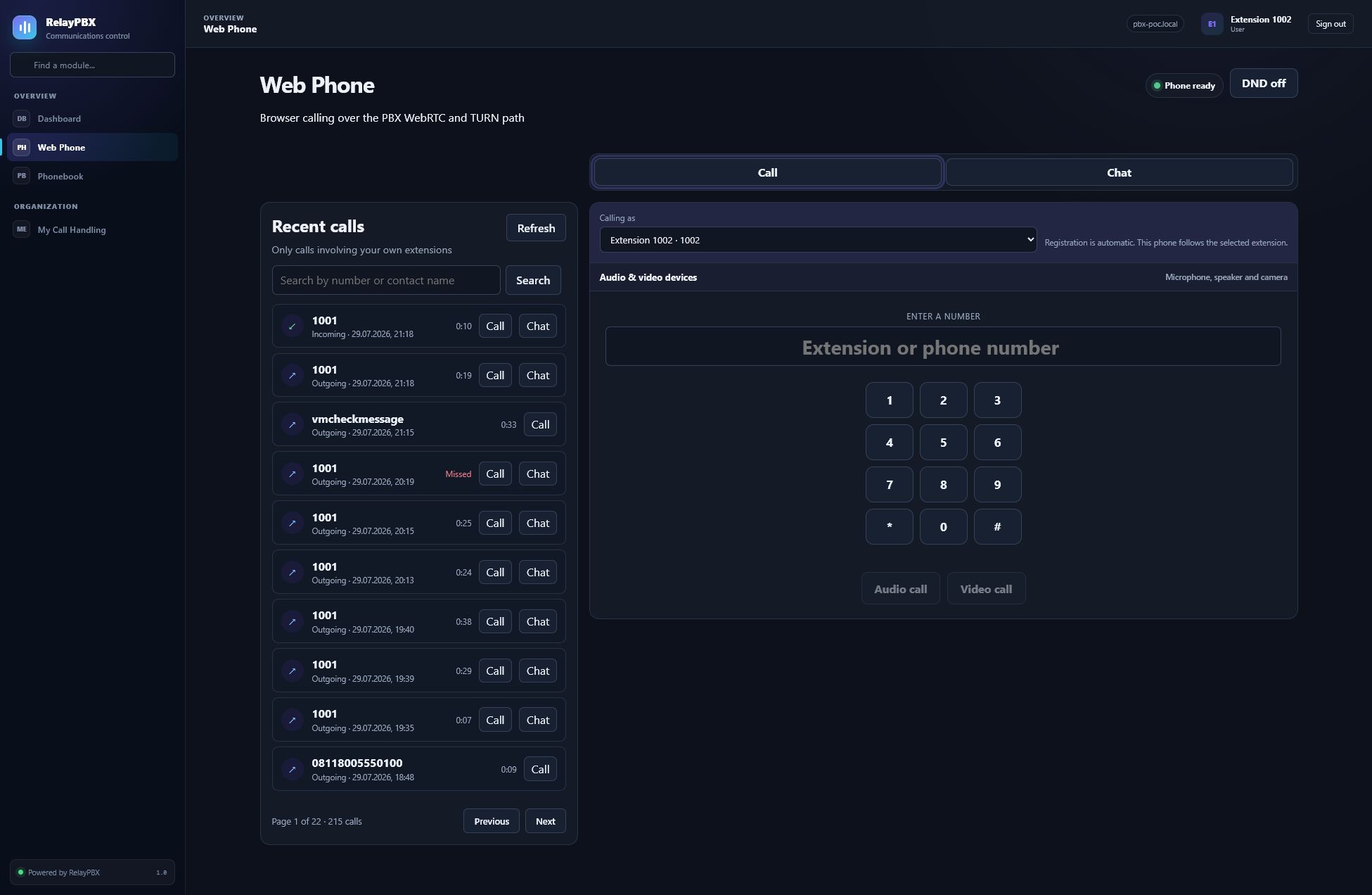
Place audio or video calls, chat with extensions and control personal presence.
Open Overview → Web Phone. The available controls depend on the active edition, module entitlement, role and tenant scope.
Before you start
No configuration change is required to read this screen. Confirm the selected tenant or platform scope and the time zone before interpreting live state.
Capture the current value or export the affected records before a bulk or routing change. This gives the operator a precise comparison point and makes a supported transaction undo easier to assess.
Step-by-step workflow
Complete the steps in order. Do not combine an initial configuration with unrelated cleanup; small, attributable changes are easier to test and reverse.
- Allow microphone access and select an assigned extension.
- Use Call or Chat tabs; registration happens automatically.
- Choose queue presence and DND independently.
- Use audio/video settings before a call when a device must be changed.
Field reference
Use the reference below while completing the form. Fields hidden by edition, module entitlement or role are intentionally unavailable to the signed-in user.
- Calling as
- The extension used for SIP registration and caller identity.
- Phone status
- Connecting, ready, offline or registration failure.
- Queue presence
- Available, on break or logged out for an assigned queue agent.
- DND
- Prevents inbound calls to this extension without logging the agent out.
- Auto-scroll
- Keeps chat at the newest message; disable it while reading history.
- Audio and video devices
- Microphone, speaker and camera stored for this browser.
Acceptance checks
A saved record is only the beginning of validation. Run every relevant check below and retain the call-session ID, time and result when telephony is involved.
- Confirm the displayed scope, timezone and last-updated time.
- Follow one card or warning to its source record and compare the values.
Common mistakes and safe recovery
If a check fails, stop adding changes. Restore the previous value or use a supported transaction undo, regenerate PBX configuration, then repeat the smallest failing test.
- Webphone and RelayPBX Desktop require the Business edition or higher with the Unified Clients entitlement.
What to include in a support case
Provide the tenant, module and object name, local time with timezone, expected result, observed result and the most recent successful state. For a call problem, include the logical call-session ID and the redacted SIP/SDP text diagnostic before requesting PCAP.
Never paste passwords, private keys, raw license payloads or unredacted customer media into a ticket. Use the one-time diagnostic grant and attachment controls when support requests additional evidence.